

Set up directory sign-in
Directory sign-in lets people use their school or work account at the login screen of a managed computer. It signs them in to the workstation only; it does not change how administrators sign in to Cybex Manage.
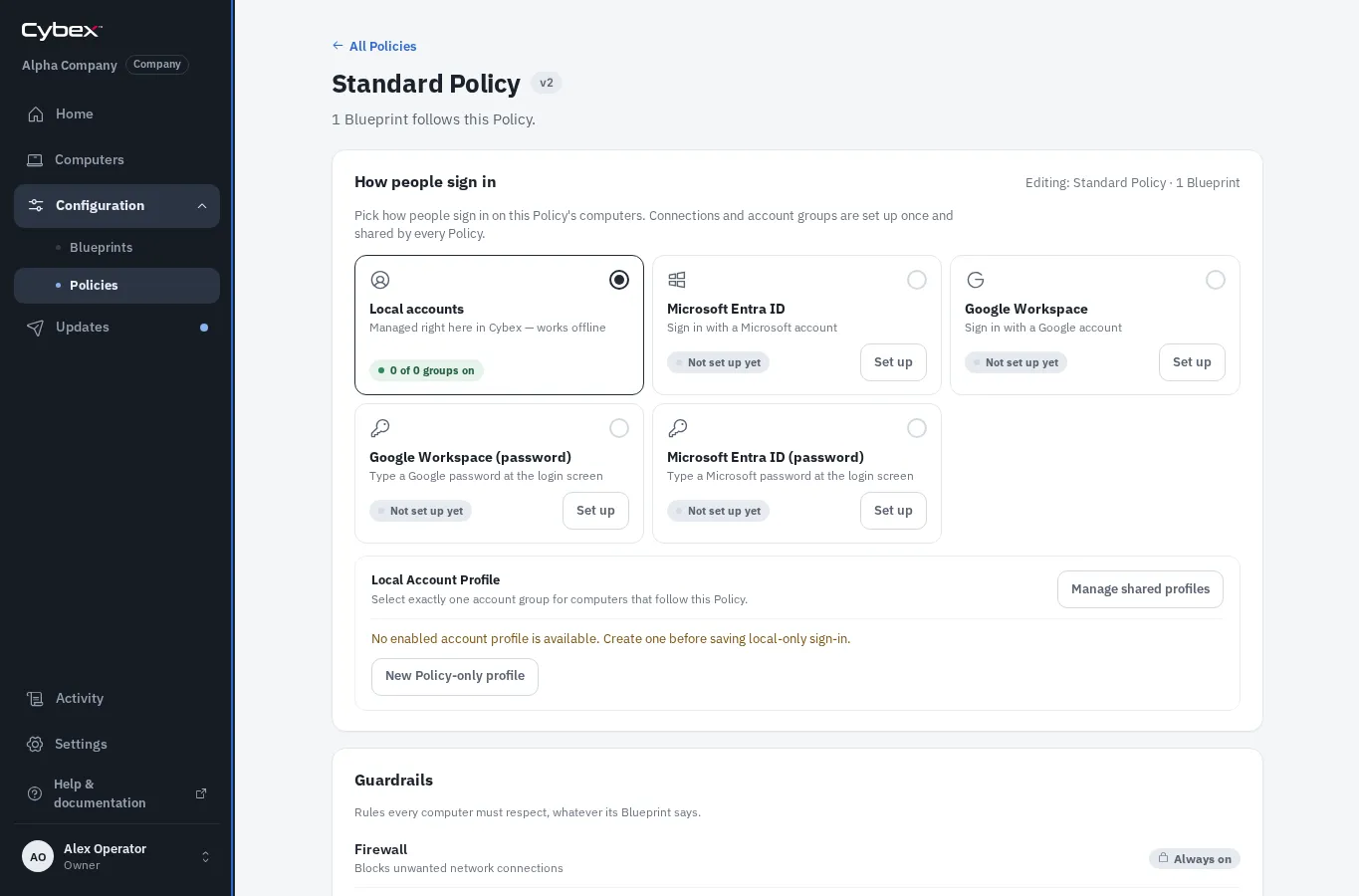
Directory connections belong to the organization and are made once under Settings > Sign-in sources. Each Policy then chooses independently whether its computers use a connected source, and how the login screen behaves.
Setting up directory sign-in has three parts:
- Create an application or client in the Microsoft or Google administrator portal.
- Connect it once in Settings > Sign-in sources.
- Select it in each Policy that should use it, then release the resulting Blueprint update.
Steps 1 and 2 are on the provider pages: Microsoft Entra ID sign-in and Google Workspace sign-in. Step 3 is described below.
Choose a sign-in source
Section titled “Choose a sign-in source”Each provider offers two ways to sign in. The difference people notice is whether they type a password at the computer or read a one-time code from the screen and finish signing in on a phone.
| Source | How people sign in | Login screens | Administrator rights |
|---|---|---|---|
| Microsoft Entra ID | Web address and one-time code, completed on another device | GDM only | Entra app role or group |
| Microsoft Entra ID (password) | Microsoft password, or a PIN set on first use, typed at the computer | Any | Entra group Object ID |
| Google Workspace | Web address and one-time code, completed on another device | GDM only | Group rule, rarely usable |
| Google Workspace (password) | Google password typed at the computer | Any | Not available; use a local account group |
Two further differences matter when planning:
- Login screen. The two sign-in code sources carry the conversation through the GNOME login screen and work only with GDM (Wayland). The two password sources answer the computer’s own authentication service, so SDDM, greetd, and COSMIC Greeter work as well.
- Package building. Every source except Google Workspace (password) needs packages that no approved binary cache provides, so each Blueprint on the Policy must have Allow Forge to build from source switched on. See Blueprints that build only from cache.
Before you start
Section titled “Before you start”Have these ready:
- access to create an application in the Microsoft or Google administrator portal;
- a non-administrator directory account for the test sign-in;
- a representative computer for testing the resulting Blueprint update; and
- a tested local break-glass administrator account in case the directory is unavailable.
Turn it on for a Policy
Section titled “Turn it on for a Policy”- Open Configuration > Policies and select the Policy to change.
- Under How people sign in, select the card for the connected source. A card that reads Not set up yet must be connected first under Settings > Sign-in sources.
- For a sign-in code source, choose whether the login screen also shows a Sign-in QR code. The web address and one-time code are always shown; the QR code is an extra for phones. Password sources have no code, so this choice is not offered.
- Choose Offline sign-in. Allowed after first sign-in lets someone keep signing in when the directory or the internet is unreachable, once they have signed in successfully at least once on that computer. Always verify online requires the directory every time.
- Select Save Policy.
- Select Review in Updates, test the prepared Blueprint candidate on a representative computer, then release it through the normal rollout process.
The first directory sign-in on a computer must be online, whichever source is used. With a sign-in code source, the computer then creates the local identity and asks the person to choose the password they will use when signing in offline.
Blueprints that build only from cache
Section titled “Blueprints that build only from cache”Microsoft Entra ID (both kinds) and Google Workspace with a sign-in code need packages that are not available from an approved binary cache. If a Blueprint on the Policy has Allow Forge to build from source switched off, Cybex prepares that Blueprint with local accounts instead of directory sign-in, and says so before the Policy is saved.
To fix it, open the Blueprint, switch Allow Forge to build from source on, then save and release that Blueprint. Google Workspace (password) is unaffected: it uses cached packages only.
Troubleshoot the connection
Section titled “Troubleshoot the connection”- Cybex cannot start the test: check the copied IDs and secrets, the Entra public-client setting, the Google client type, and provider availability.
- The test account is rejected: use an account from the configured tenant or Workspace domain, and review provider Conditional Access, multi-factor, consent, or API-control rules.
- The connection works but the sign-in choice is missing on the computer: confirm the Policy was saved, its Blueprint candidate was released and deployed, that the Blueprint allows source builds where required, and that the login screen is compatible with the chosen source.
- An administrator rule does not match: confirm the identity token or group really carries the named claim and exact value. Remove the rule while investigating so unexpected people do not receive administrator rights.
- Sign-in works but files show numbers instead of names: the directory is not returning the POSIX attributes the computer needs. See Google Workspace sign-in.
Never place client secrets, certificates, one-time codes, tokens, or screenshots containing real account data in support tickets or documentation.