

Create and edit Blueprints
A Blueprint is the desired configuration for one or more computers. It follows the organization Policy and contains choices such as apps, desktop experience, sleep behavior, and local settings.
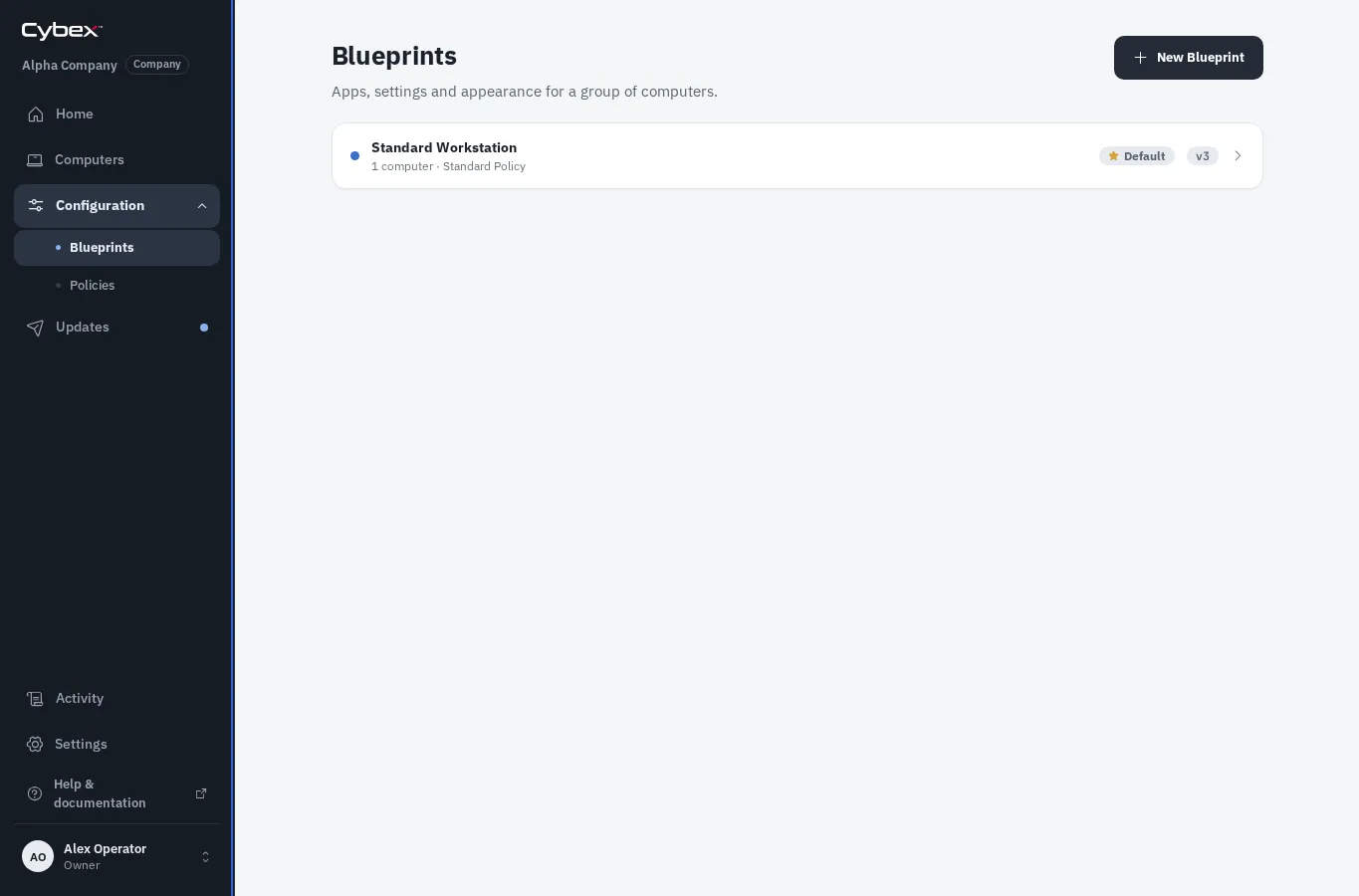
Create a Blueprint
Section titled “Create a Blueprint”- Open Configuration > Blueprints and select New Blueprint.
- Start from the base configuration, duplicate an existing Blueprint, or capture supported settings from a computer.
- Give it a purpose-based name, such as “Library kiosk” or “Staff workstation.”
- Choose the Policy it must follow.
- Review the new Blueprint before assigning computers.
Edit a Blueprint
Section titled “Edit a Blueprint”- Open the Blueprint and change apps or settings.
- Review labels that identify values inherited from its Policy, values customized by this Blueprint, and locked values that cannot be overridden. Use Use Policy value to remove an unnecessary Blueprint override.
- Expand Advanced settings only when the task needs a less common setting. Open one category at a time.
- Select Save draft. Saving stages a draft; it does not change computers yet.
- Select Review in Updates when the draft is ready to test or deploy.
Rename, delete, capture, revision details, and other infrequent controls are grouped under Management. Prefer small, reviewable changes over unrelated changes bundled into one release.
Default Blueprint
Section titled “Default Blueprint”Marking a Blueprint as the default preselects it for newly adopted computers. It does not silently reassign existing computers.