

Add computers
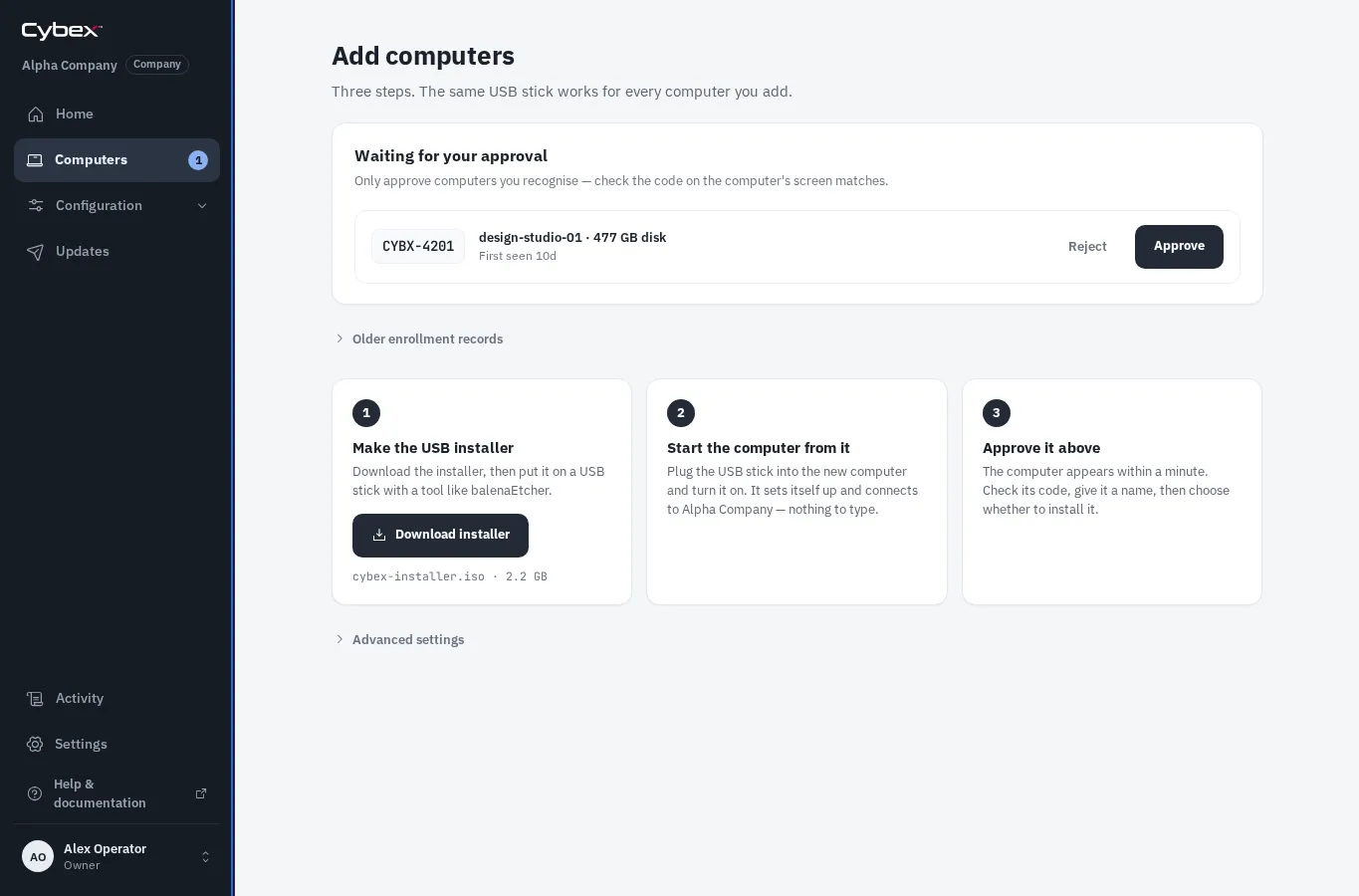
Open Computers > Add computers to install or adopt a computer. Pending approvals appear before the media instructions so newly detected computers are easy to find.
Install from USB
Section titled “Install from USB”- Download the Installer ISO from Computers > Add computers.
- Verify the displayed checksum according to your organization’s media-handling procedure.
- Write the ISO to a USB drive using an approved imaging tool.
- Boot the target computer from that USB drive.
- Keep the computer connected to power and a wired network during installation.
The same current organization installer can be reused for multiple computers. Download a fresh copy after Manage reports that the installer has changed.
Install through Cybex Forge
Section titled “Install through Cybex Forge”When Forge is online, configure the computer to network boot. Forge serves the organization installer without a USB drive. See Use Cybex Forge.
Approve the pending computer
Section titled “Approve the pending computer”- Match the pairing code displayed by the computer with the code in Waiting for approval.
- Confirm the proposed name and installation disk.
- Choose the Blueprint the computer should follow.
- Review the hardware driver choice when one is offered.
- Choose Install & add to install NixOS, or Add without installing to adopt an already installed system.
- For installation, review the confirmation naming the exact computer and disk, acknowledge that all data on that disk will be erased, and then continue.
The pairing code disappears after adoption. The computer restarts into its managed system after installation completes.